So you built a website for your small business, and now you’re building it again. I love a website rebuild – in fact, it’s quickly become our most popular service here at Studio Cotton.
It’s a chance to start from a not-quite-blank canvas where you can reuse and repurpose all your good stuff, but also make fixes, tweaks, improvements and additions while removing hurdles & barriers that were holding your business back.
Maybe you’re switching platforms, maybe you’re increasing your focus on SEO, maybe it’s a cosmetic makeover, or maybe your original web designer has quit the business and now you need to add some pages but literally can’t.
There are a tonne of ace reasons to rebuild your website – whether that’s with a designer or DIYing – but there aren’t a tonne of tips out there, until NOW.
And just as a heads up, this isn’t gonna be website design tips. I’ve shared a wagon-load of those already. Instead, we’re chatting about the specific process of rebuilding a website.
So let’s get into it.
1. Use two screens (maybe get a second monitor)
Who doesn’t love starting a blog article with the most boring tip imaginable? Look, I am a dual-screen bully fanatic. If you regularly do any work on a website, that lil 13″ MacBook has all the technical prowess you need.
But it just doesn’t have the pixels.
Using a second screen for website design and content management allows you to have your back end (hehehehe) and your front end (hahahaha) open at all times, so you’ll have a clear picture of what your website visitors will see without the faff of switching tabs or teeny tiny windows.
With a website rebuild, the second screen can play an even more important part – allowing you to simultaneously view the old/live website and the new/staging website – and, maybe more importantly, allowing you to copy and paste content, hex codes, policies and settings without losing your tabs.
I PROMISE you that you will save sooooo much time and fiddlin’ with a second screen. You can even buy one second hand and sell it as soon as you’re done, except you won’t because I know you’ll fall in love with the dual-screen life.
2. Remind yourself what websites look like now
You know how embarrassing it is, as a website designer, that every now and then I feel like I just straight-up forget what websites look like? V embarrassing. It’s like that thing where words stop looking or sounding like words.
But anyway, back to you.
As you’ve already been through a website design project, you’ll have spent a good amount of time looking at other websites, seeing what you like and what you don’t, and building that for yourself.
But that was in the past – and website design trends change. Some of these trends are purely aesthetic, like how tech brands are currently embracing a lot of neon accents when previously they were all about that corporate sad blue.
Some modern design choices aren’t just trends though; they’re modern best practice. Which basically means that from available evidence, the websites that adopt these features perform better than those that don’t.
A good example would be the unpacked image gallery you’ll find on modern product pages. Side-to-side swiping galleries are no longer the sole industry standard, with more and more major ecommerce brands choosing a scrollable, unpacked gallery.
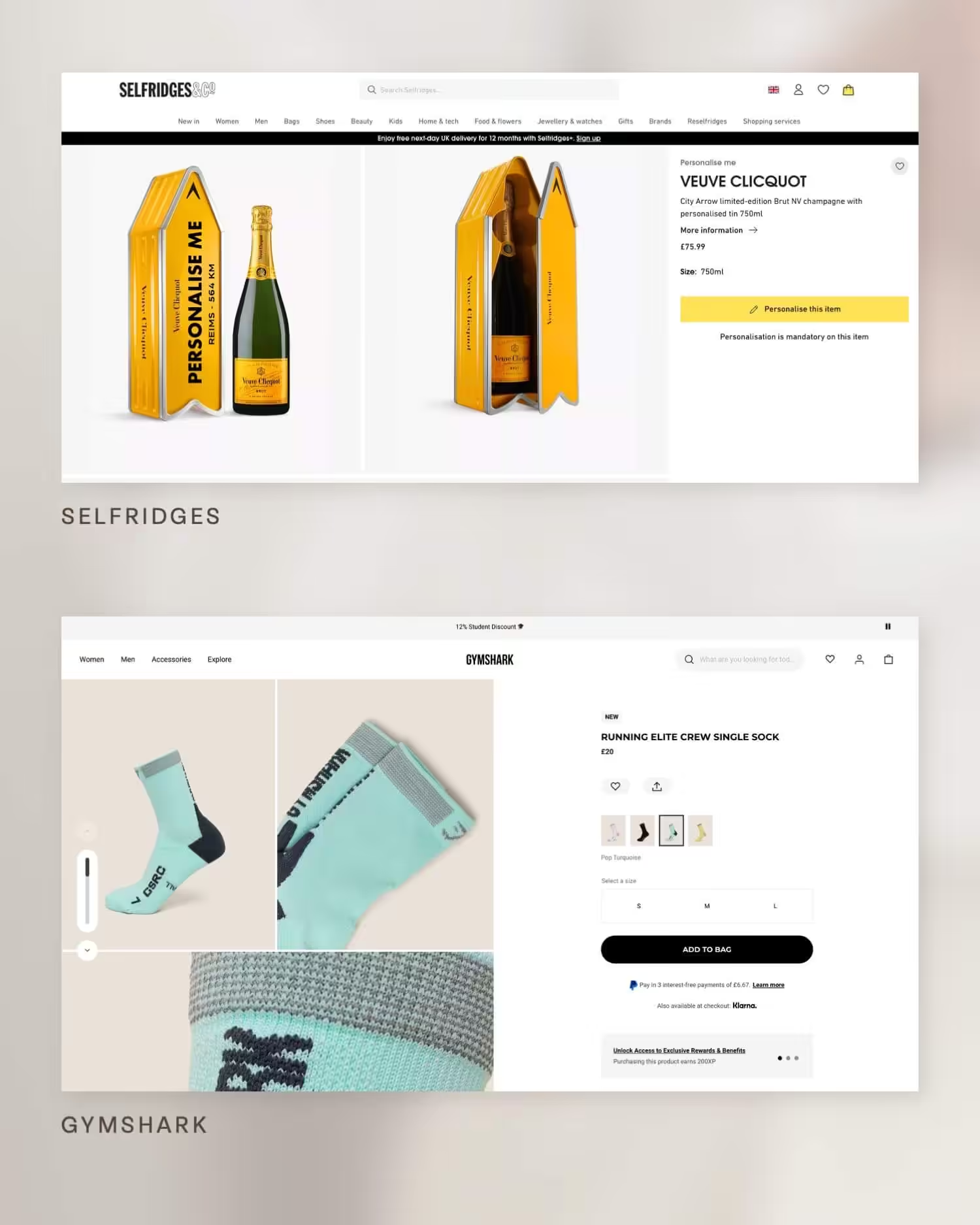
For service websites, blank space is more generous than ever, fonts are bigger, and layouts are especially uniform.
So before you start rebuilding, take a couple of hours and just absorb what big brands are doing on their websites. If you’re a shopkeeper, look at global ecommerce players. Service businesses? We’ve got it a little harder, but I’d check out some of the challenger brands in tech & finance like Starling and Content Square.
And sure, look at your small business competitors too – but just remember that they might have followed the same web-design-trends-of-the-past.
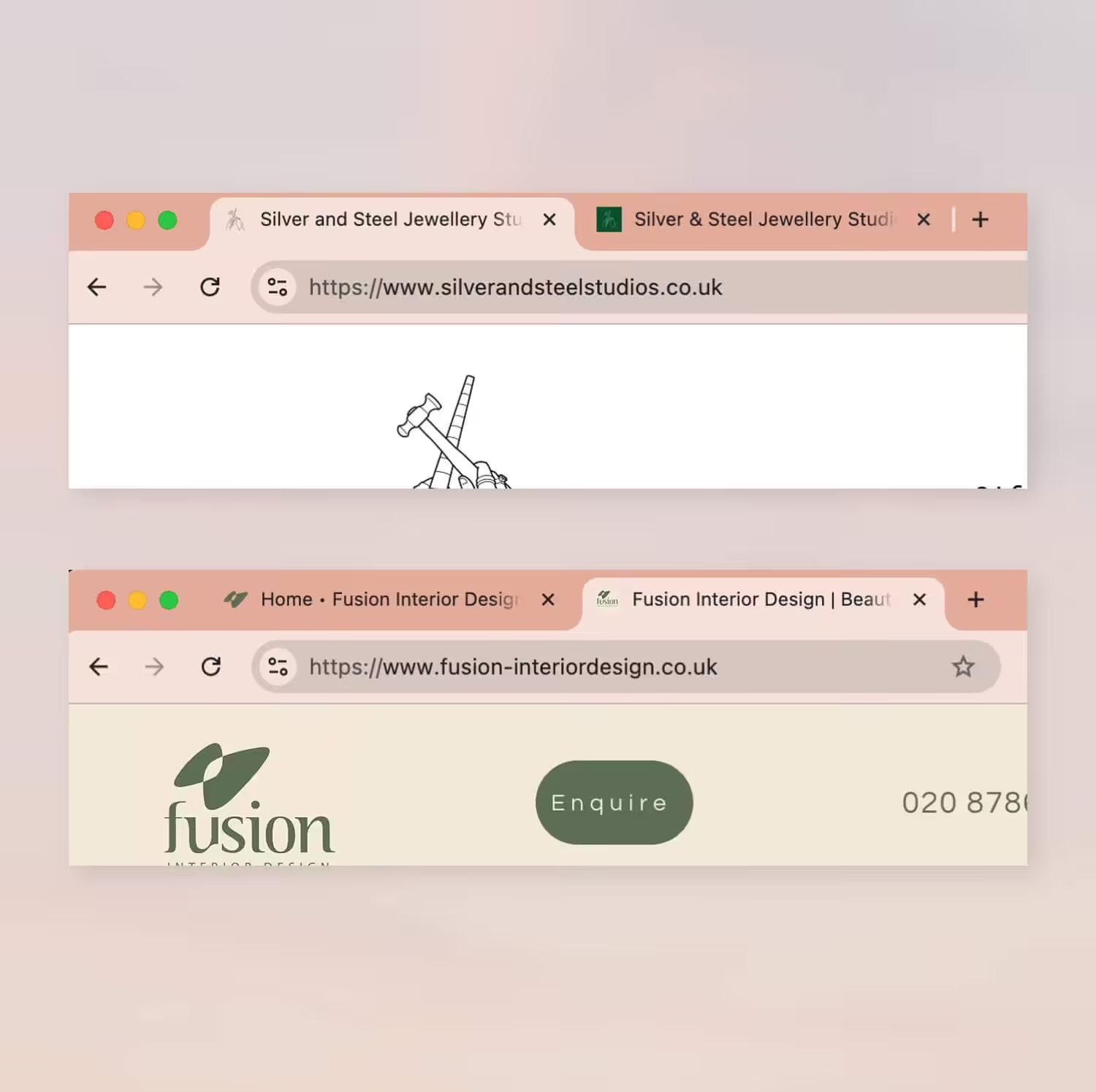
3. Set a different favicon for the new website
A favicon is the little website icon for your whole site that sits in the tab at the top of your browser. Now, I know not every platform makes it easy to use a custom favicon while editing, so sorry if this one isn’t possible for ya.
If both versions of your website have the same favicon, it can make quickly identifying the correct tab you need incredibly difficult and lead to a lot of “ah ffffffffudge, wrong tab AGAIN”. I know I asked you to get a second monitor to minimise tab-faff, but even with two windows open, I bet you’ll have at least 63 more tabs.
Favicons take a couple of minutes to design, and you can always switch them over when you’re done rebuilding your website. I like to mix up background colours, logo elements and shapes.
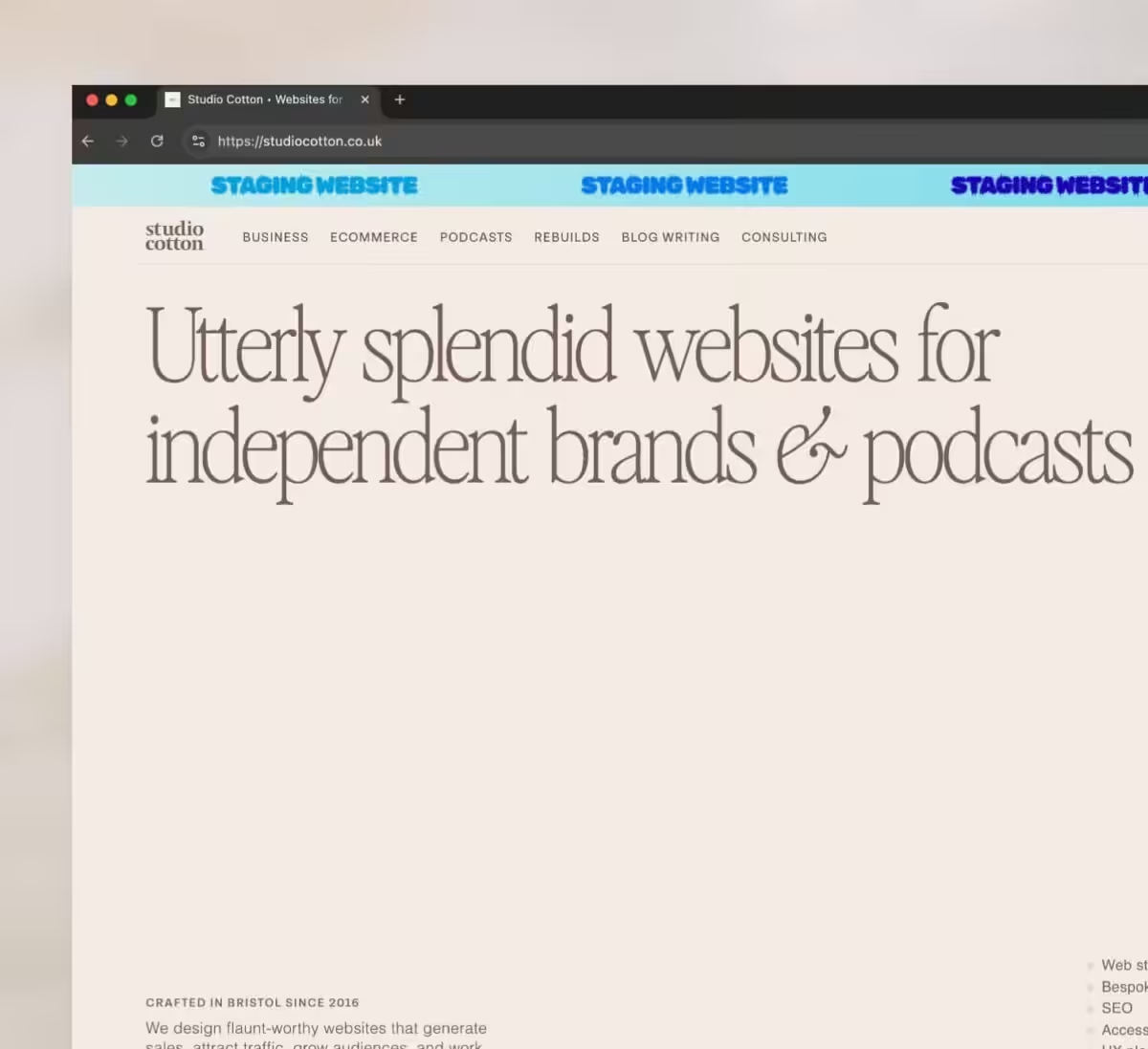
4. Pop a big, off-brand banner across the top of your new/staging website
Everyone has done it: you spend ages changing settings and editing content, only to realise you’ve been updating the old website the whole time.
This is especially common if you’re rebuilding your new website on the same platform as your old website, as your editor might look identical.
I recommend taking five minutes and building a well ugly, unmissable bar at the very top of your website. This top bar is pretty darn easy to create in Squarespace, Shopify, Wix & WordPress, and could save future-you from losing hours of work.
5. Transfer all of your content, at least to start with
Your SEO power largely comes from your website content. If you rebuild your website but leave behind a tonne of blogs, pages, products, and collections – well, you could be leaving a bunch of SEO impressions and clicks on your metaphorical cutting-room floor.
A website rebuild is a great opportunity for a content cull, since ya know, you’re logged in already. With that cull comes risks, and those risks might not make sense for you right now.
Instead, when rebuilding your website, import all of your old products and blogs and pages, and maybe limit yourself to ditching only 10-15% for now.
Then, post-launch – it’s audit time! Work out which pieces of content aren’t pulling their weight, and update, rework, or ditch.
PS. Just because you have a page on your website, doesn’t mean you need to push visitors to view it. It’s totally ok to leave some less-than-stellar fellas floating in your back end (hohohoho) until you’ve got time for your audit.
6. Work from the inside of your website out
I bet you can design a fantastic home page. And then a great about page. And then a really good service page. And then a very nice contact page. And then maybe a lovely product page. And then maybe an ok blog page. And then a mediocre visit us page.
Whether building or rebuilding a website, it’s very common to run low on time and creative juices as you progress through the project. This can mean that some templates haven’t hit the mark, and sometimes those pages are the most important.
The most effective place to dedicate your best time and effort is on the pages/templates that do the most convincing for your customers. For ecommerce websites, this is your product page template. For service businesses? Your service pages.
Start from those and work your way towards the conversion point – the checkout or the enquiry form.
Then work backwards. I know, I am totes controversial in the web design world for leaving the home page until almost-last on most projects.
But hear me out: a home page’s main job is to move someone to that convincing page, and it’s a lot easier to design a bangin’ home page when you know exactly where that next click is heading.
7. Keep your website links the same (or whack in 301 redirects as you build)
Back to rebuild admin. When your website links change, Google doesn’t always see it as “oh, the page that was at /about is now at /about-us, let me move all that power over”.
In fact, it’s more like “oh, /about is gone, best forget everything I knew about it,” followed by “oh, /about-us has appeared, let me analyse that brand new page.”
Keeping your links the same allows Google to track the provenance/history of your content, and is the best option for your SEO.
If you can’t keep your link the same because Shopify whacks in a /pages/ to everything, or because your old link was /newpage-1, pop in a 301 redirect from the old link to the new one.
A 301 redirect is the instruction that says “hey Google, this page has moved to here”, and while it’s not as good as keeping the link the same, it is certainly a LOT better than nothing.
Redirects can be added as you make your website, so they could be a nice lil task to tackle as you complete each of your website pages.
8. Launch as soon as your new website is as good as your old website
I know you want your new rebuilt website to be perfect, but:
- Perfect isn’t a thing
- The longer you wait to launch that new website, the longer your customers will be using that old website
Advising clients to launch their new website as soon as they’re confident that it’s as good as their current website has been part of my pitter-patter for years.
And that’s from my own personal experience of having created well over 100 small business websites, and working with owners who might leave new websites in stasis for weeks, months or even years because they don’t have the time to make the content completely perfect.
Not only does this mean your audience is stuck with the old website that you already know isn’t quite good enough, but it also means that you can’t start totting up all the SEO wins from all the new work you’ve done.
So plan to launch your website rebuild as soon as you can – and then keep tinkering, keep adding, keep refining.
9. Set up Google Search Console and Analytics immediately after launch
We started boring and we’ll end boring. It’s really handy to be able to compare the stats of your rebuilt website with your old one – which means you need to have my trusty eggs, Google Analytics and Google Search Console, set up correctly and as quickly as possible.
So that’s my round-up of top tips for rebuilding your small business website, some tiny, some massive, and one that requires you to pop out to Argos.
If you fancy some related reading, check out my article on 6 all-too-common ways launching a new website can tank your SEO, or 4 wise ways to tell you’re ready to launch your new small business website.
Funnily enough, I just checked out that launching blog for the first time since 2023 when I asked Lyzi to round up some of our studio expertise – and realised that we almost word-for-word included the same notion of small business owners waiting for website perfection.
Anywho, if you fancy reading more about how we rebuild websites here at Studio Cotton, check out our website rebuild service. Have any questions about this article? DM me on Instagram, I’m always lurking.